SSH Setup-Codeberg & Windows
#codeberg #ssh #putty #pageant #jjvcs #windows
1 Purpose
The purpose of this document is:
- to show how to set up an SSH key on Codeberg.
- to show how to setup Git SCM and Jujutsu VCS on windows
- to show how to setup Git/Jujutsu with SSH on Windows.
2 Prerequisites
Ensure that all of the following are true:
- You can use windows terminal & Powershell.
- You have a Codeberg account.
- You have installed Putty ssh client.
- (Recommended) Install Notepadd++ as your default editor (this is for Git).
- You have installed Git
- You have installed Jujutsu VCS.
- I recommend using WinGet e.g. type
winget install jj-vcs.jjinto Powershell.
- I recommend using WinGet e.g. type
2.1 Note for Git install on Windows
Select Notepad++ as your default editor unless you already have a preference:
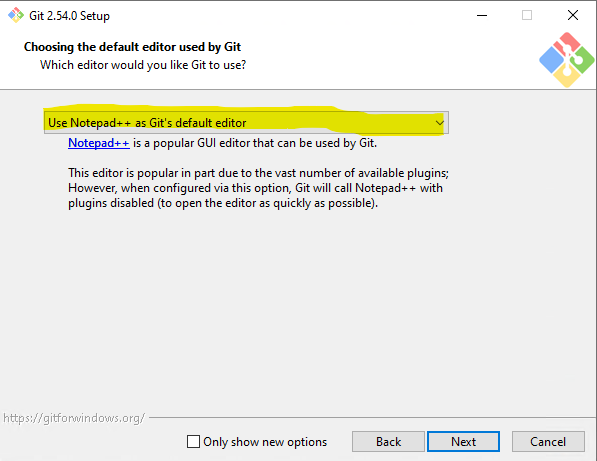
The editor of choice must be installed before installing Git!
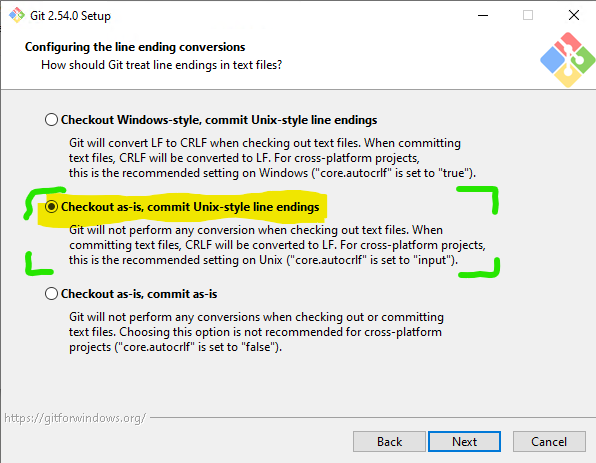
During installation, at the "Configuring the line ending conversions" step, pick "Checkout as-is, commit Unix-style line endings":
3 Generate an SSH key
Use EdDSA: ED25519 or Ed448!
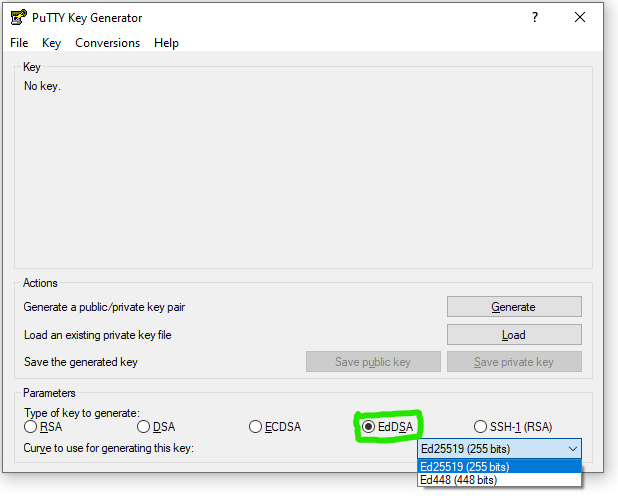
Please use a password for this key!
See this guide for more detail.
Remember where you saved this file! You'll need it later.
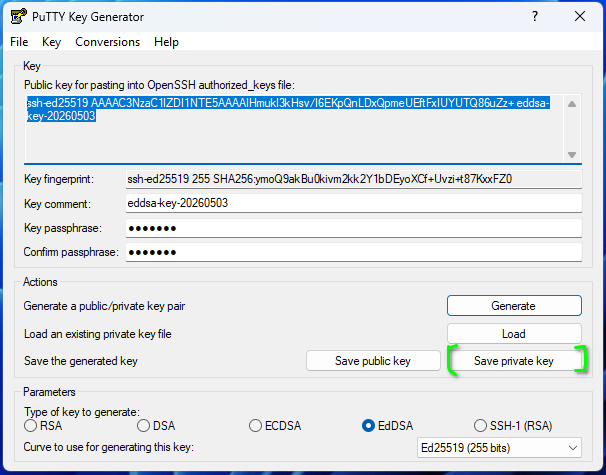
It's recommended to copy it to a flash drive.
4 Add SSH key to Codeberg account
Open the key in Putty Gen and copy this for pasting into Codeberg:
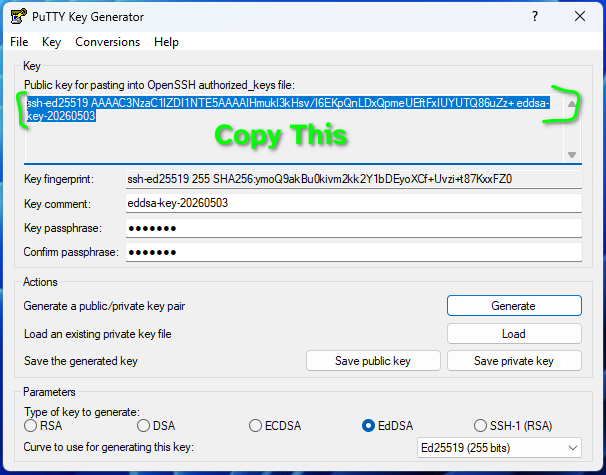
Follow the "Add the SSH key to Codeberg" step of this guide.
5 Setup Pageant
See this tutorial
You then need to set and environment variable for your account not the system:
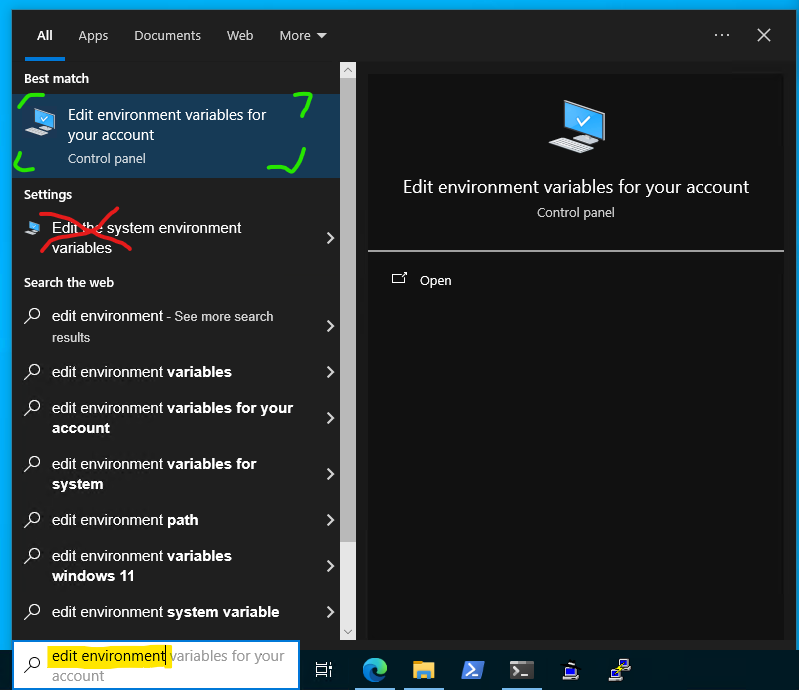
or type this into Powershell:
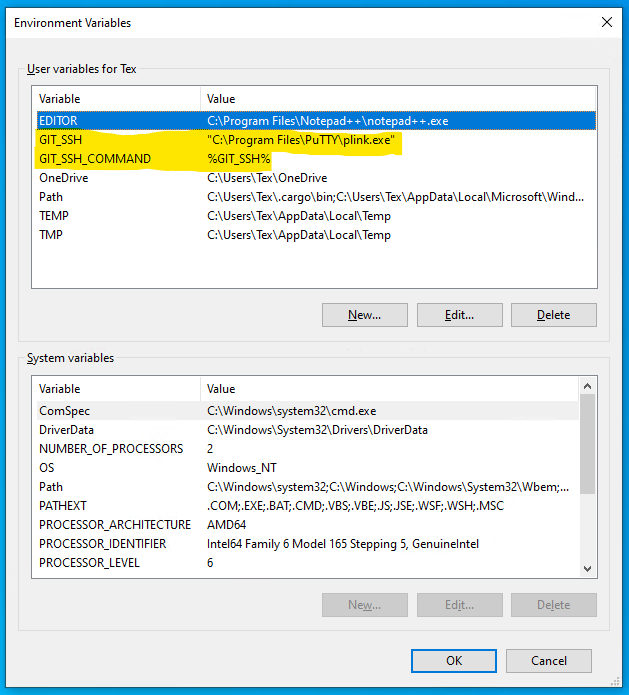
[Environment]::SetEnvironmentVariable("GIT_SSH", "C:\Program Files\PuTTY\plink.exe", "User")
and then:
[Environment]::SetEnvironmentVariable("GIT_SSH_COMMAND", "C:\Program Files\PuTTY\plink.exe", "User")
This is so Git can use Pageant and your SSH key.
Your environment variables should look like this afterwards:
6 Start Pageant and add key
Start Pageant with your SSH key (.ppk file).
6.1 Method 1 (preferred): Start Pageant by double-clicking the key file
Navigate to the key file in File Explorer and double click on it (or open it with the context menu).
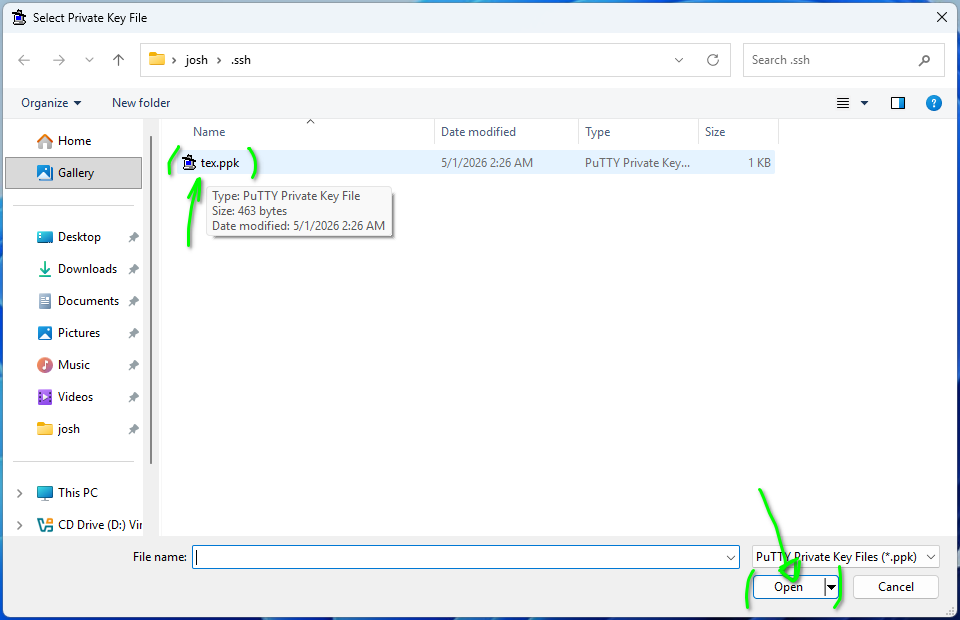
If you set a password (you should!) it will ask for it here and start Pageant with the key you clicked on already added.
6.2 Method 2: Start Pageant then add key
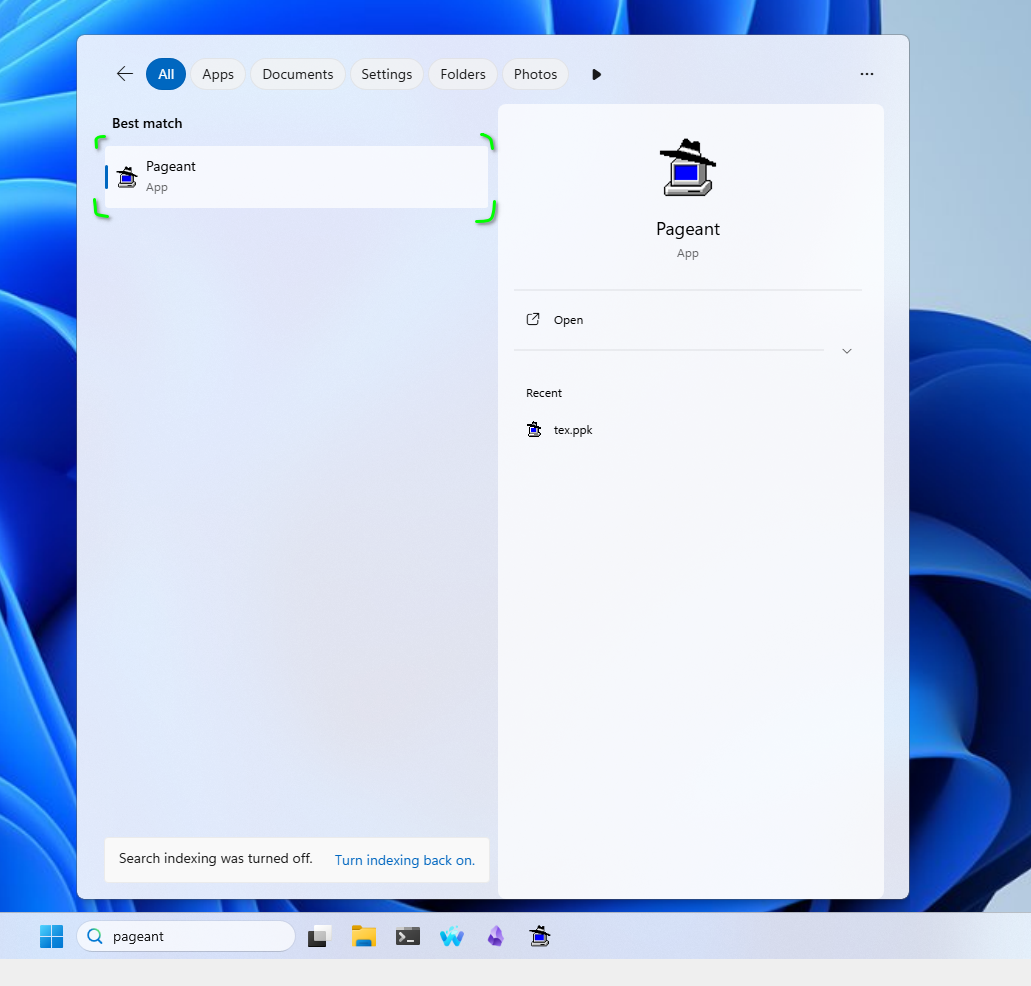
Start Pageant:
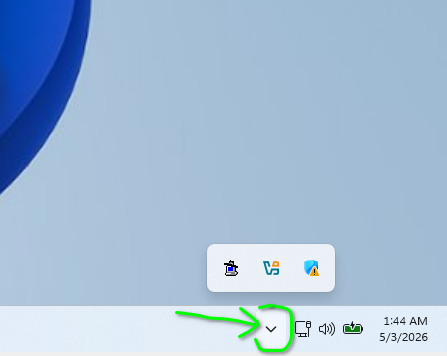
Open the system tray on the bottom right:
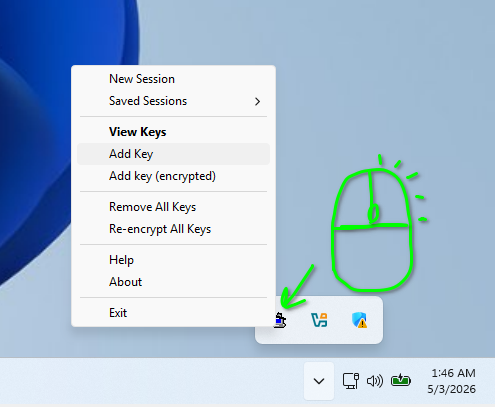
Right-Click the Pageant icon in the system tray:
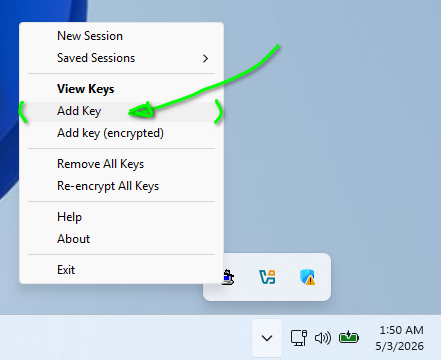
Click "Add Key":
Navigate to and open the key file:
If you set a password (you should!) it will ask for it here.
7 Connect with Putty
You need to make your computers SSH program allow connections to Codeberg before JJ or Git can use it.
First, start Pageant and load your SSH key.
Second, open putty and connect to: git@codeberg.org.
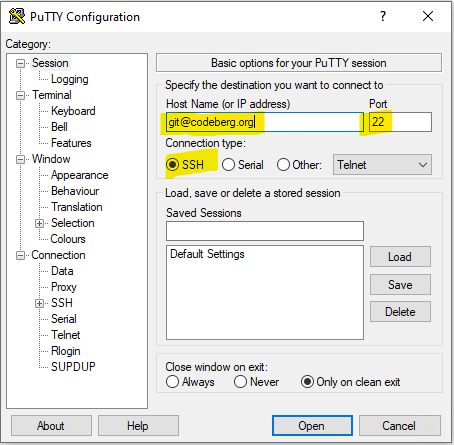
Leave all other settings the same. Make sure the port number is: 22.
[!NOTE] Note The "git" in the URL ahead of the "@" refers to the user "git" at the codeberg.com server.
The first time you do this you should see a popup:
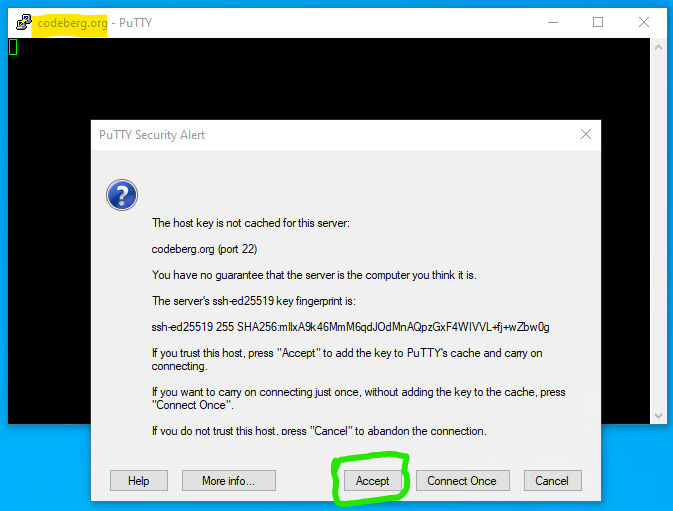
In short, click "yes" or "accept" like in this tutorial (seen at 1:13).
8 Finish
From here jj git clone <repo address> e.g. typing: jj git clone ssh://git@codeberg.org/Grayson_Robotics/Team_Notebook.git in a terminal should work without trouble.